The Best Browser for Android:Edge Now Supports Installing Any Browser Extension!

Microsoft Edge for Android has recently quietly added support for installing browser extensions!
With this update, Microsoft Edge has instantly become Axu's top-recommended browser for Android, and here's why:
Supports extension installation(including Tampermonkey)
Enables cross-platform synchronization of browser data such as bookmarks and passwords
Offers full-page web translation
Features ultra-realistic TTS (Text-to-Speech) for reading novels aloud
Supports PWA (Progressive Web Apps)
Not to mention Edge's unique features like Drop (file sharing), Send to Device, and Collections. All in all, the current version of Edge is simply perfect!

Microsoft Edge Canary
However, it’s important to note that this feature is currently only available in the latest Canary build (not even in the Beta version). You can download the latest Canary version of Edge from the following platforms:
Malavida:
FileHippo:
Softonic:https://microsoft-edge-canary.en.softonic.com/android
How to Install Extensions
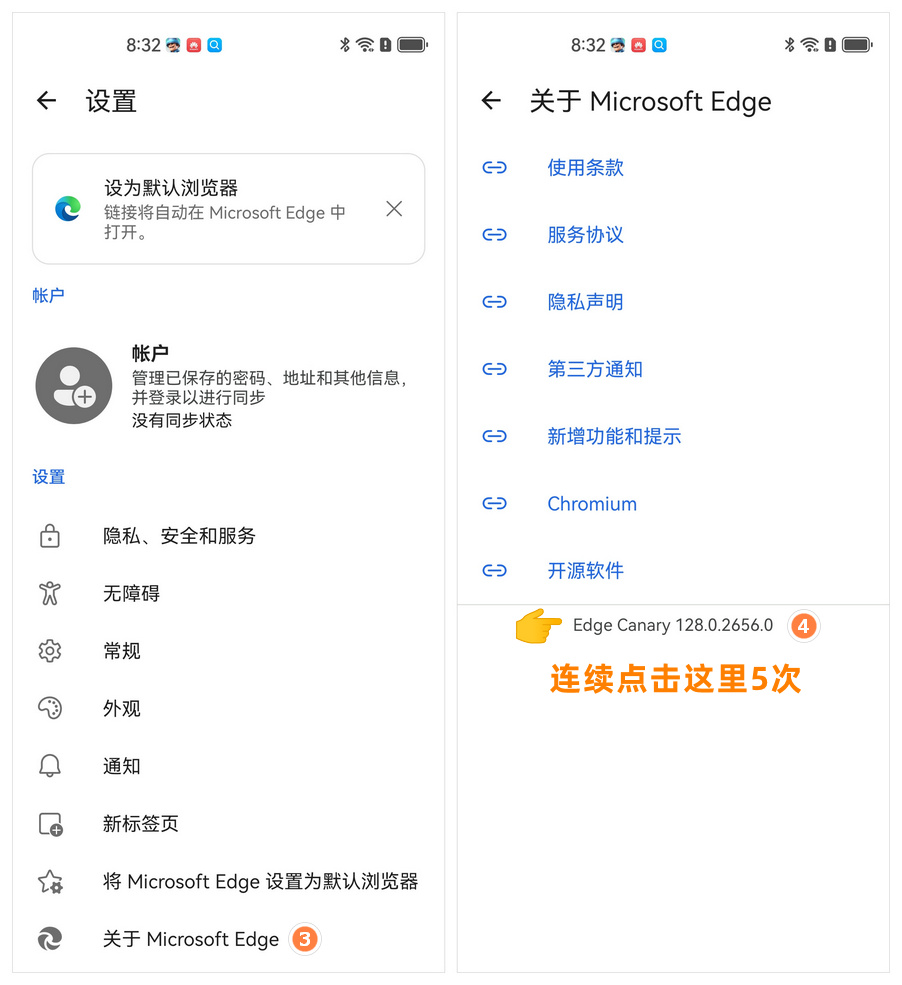
After downloading and installing Edge Canary, open the Microsoft Edge Settings page.
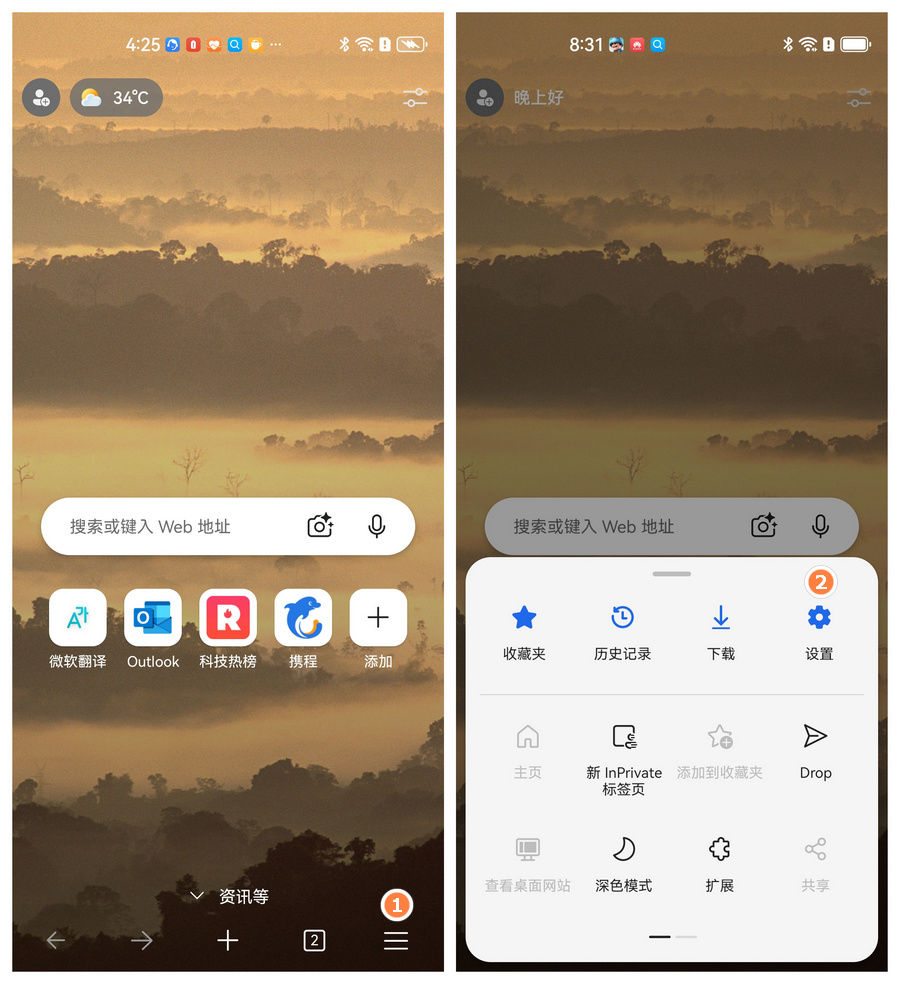
Scroll to the bottom of the settings and find About Microsoft Edge, then tap the version number 5 times consecutively!
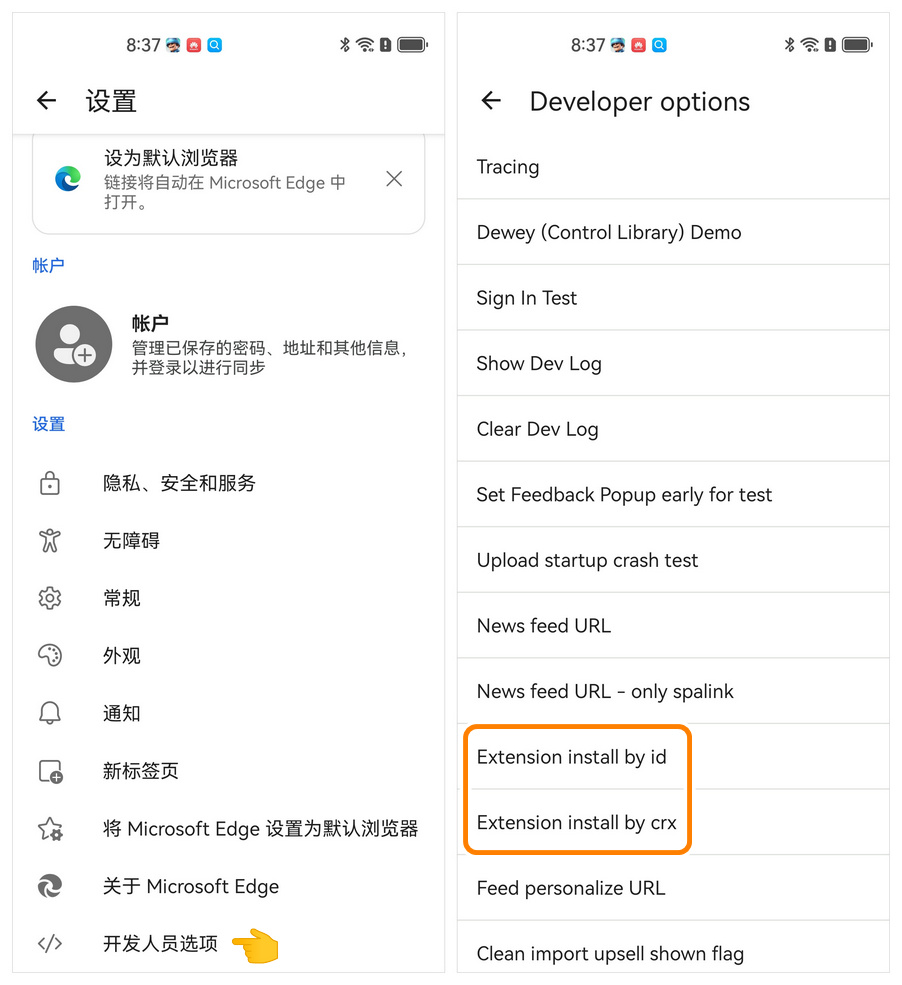
Return to the previous settings page—you’ll now see a new Developer options section at the bottom. Tap into it, and you’ll find two features: Extension install by ID and Extension install by CRX.
Install via Extension ID 👍
We recommend installing extensions directly online using the extension ID from the Microsoft Edge Add-ons Store:

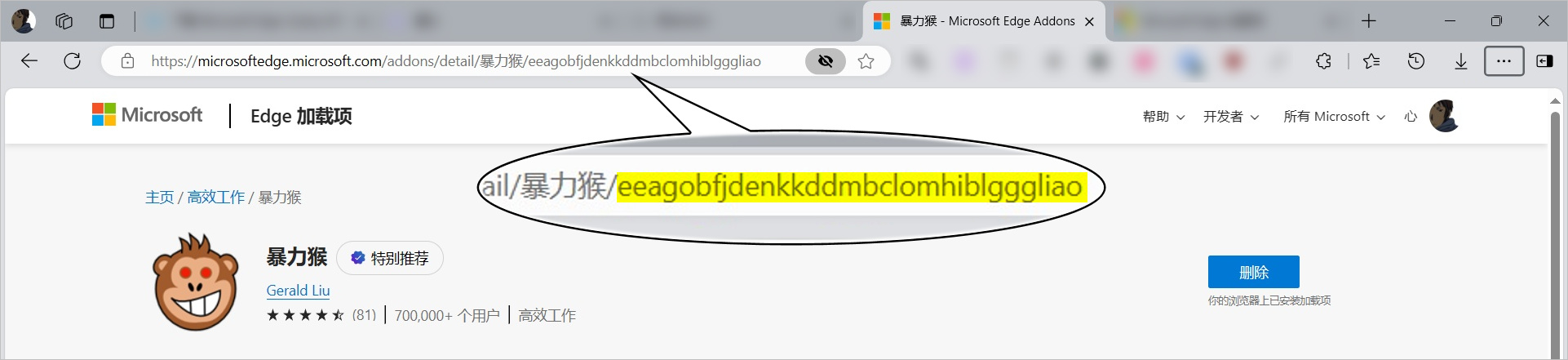
On your computer, locate the extension you want to install. The string of characters at the end of the address bar is the extension’s ID. For example, the ID of the Violentmonkey extension shown in the image below is: eeagobfjdenkkddmbclomhiblgggliao
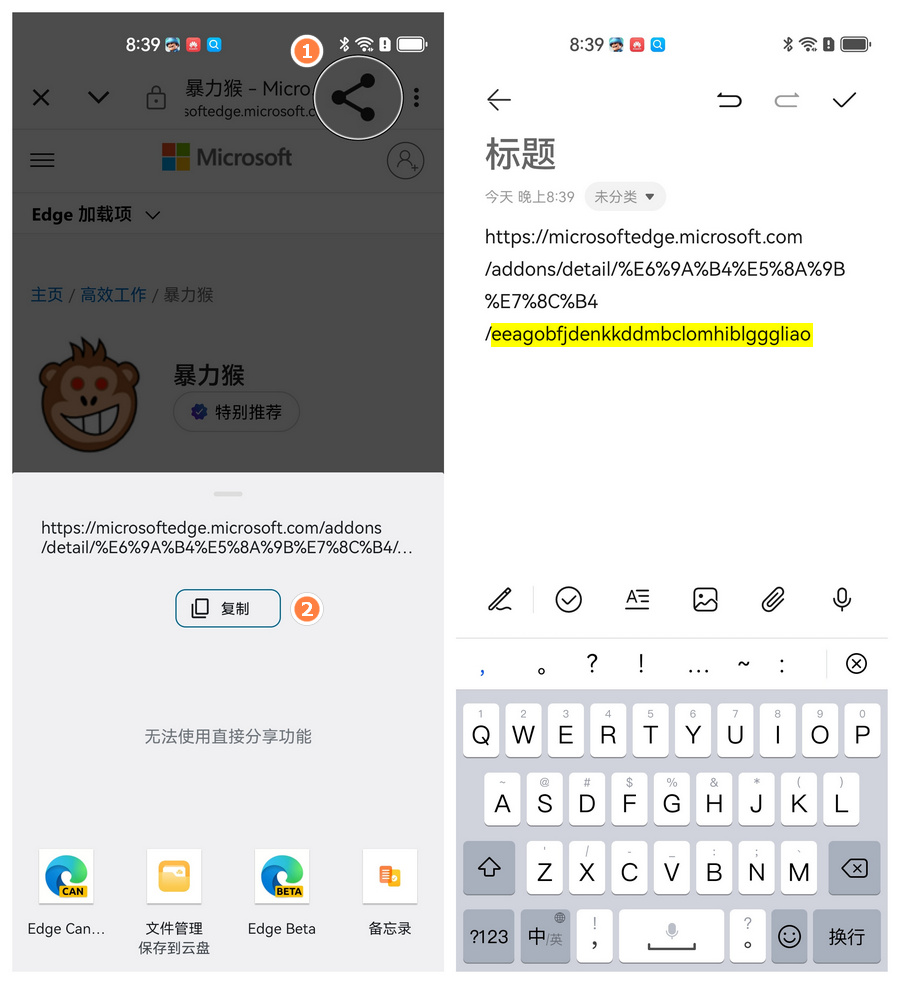
If it’s inconvenient to do this on your phone, you can copy the extension’s web address, save it to a notes app (e.g., Notepad or Reminders), and then extract the extension ID from there.
Once you have the extension ID, installation is straightforward: paste the ID into the Extension Install by ID input box in the Developer options, wait patiently for a moment, and the extension will be installed successfully!
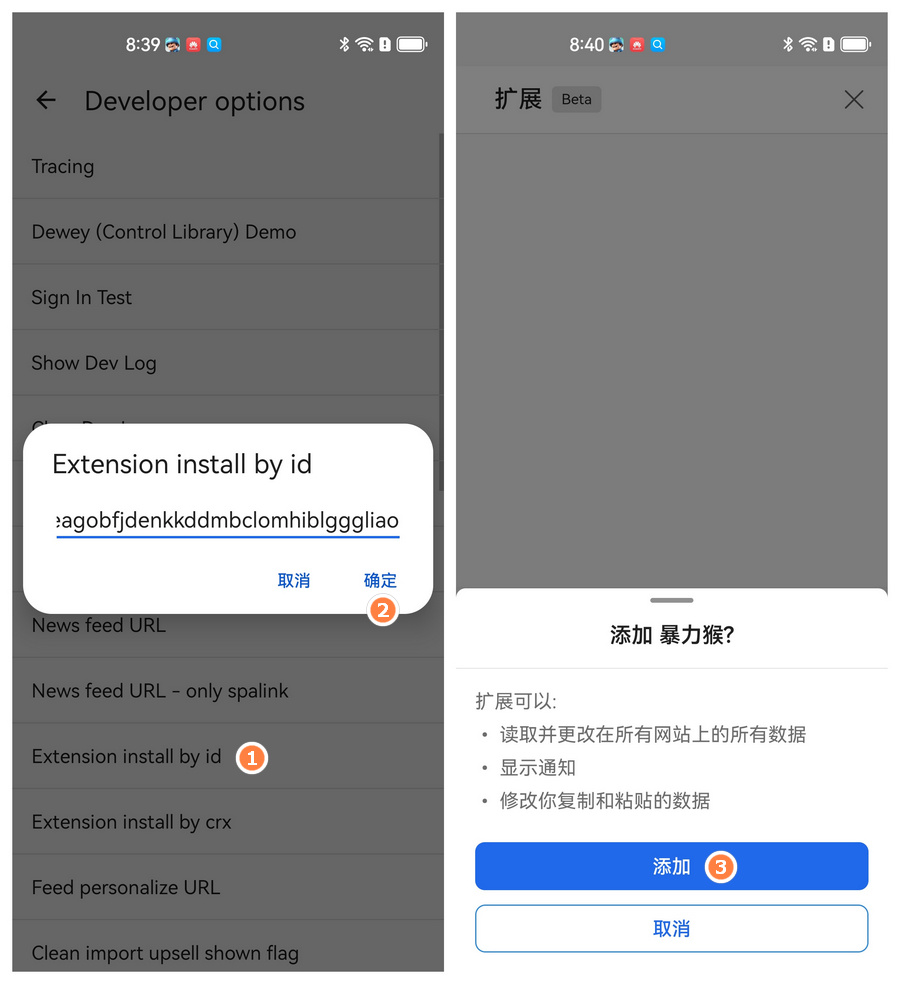
After installing the Violentmonkey script, it works perfectly without any issues!

Local Installation (via CRX File)
While the above method is convenient, not all extensions are available on the Microsoft Edge Add-ons Store. Some are only hosted on the Chrome Web Store, and others can only be installed via CRX files (the official extension package format).
Let’s use the website as an example: open the site, search for the extension you need, and you can easily download the CRX file to your device.
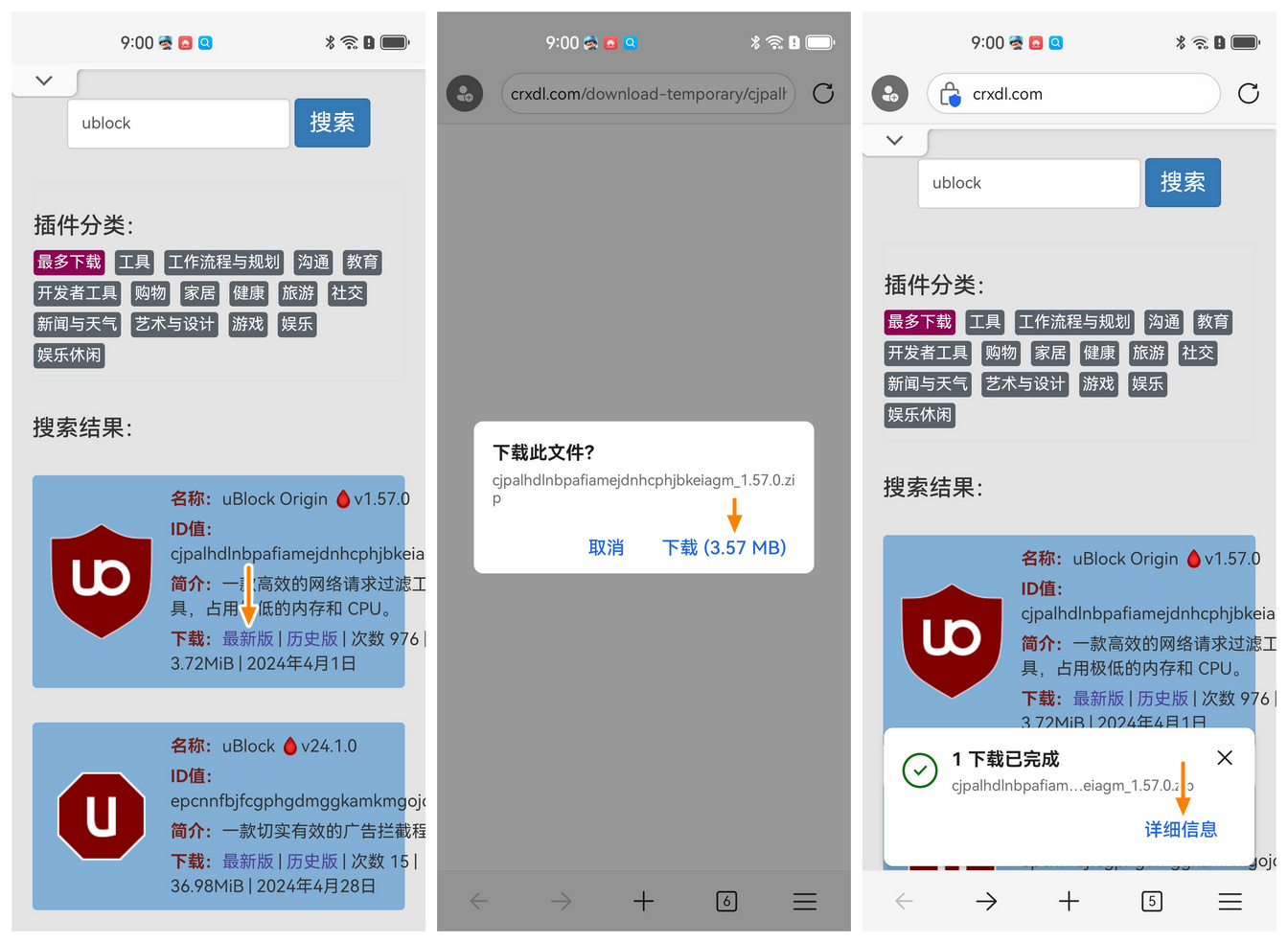
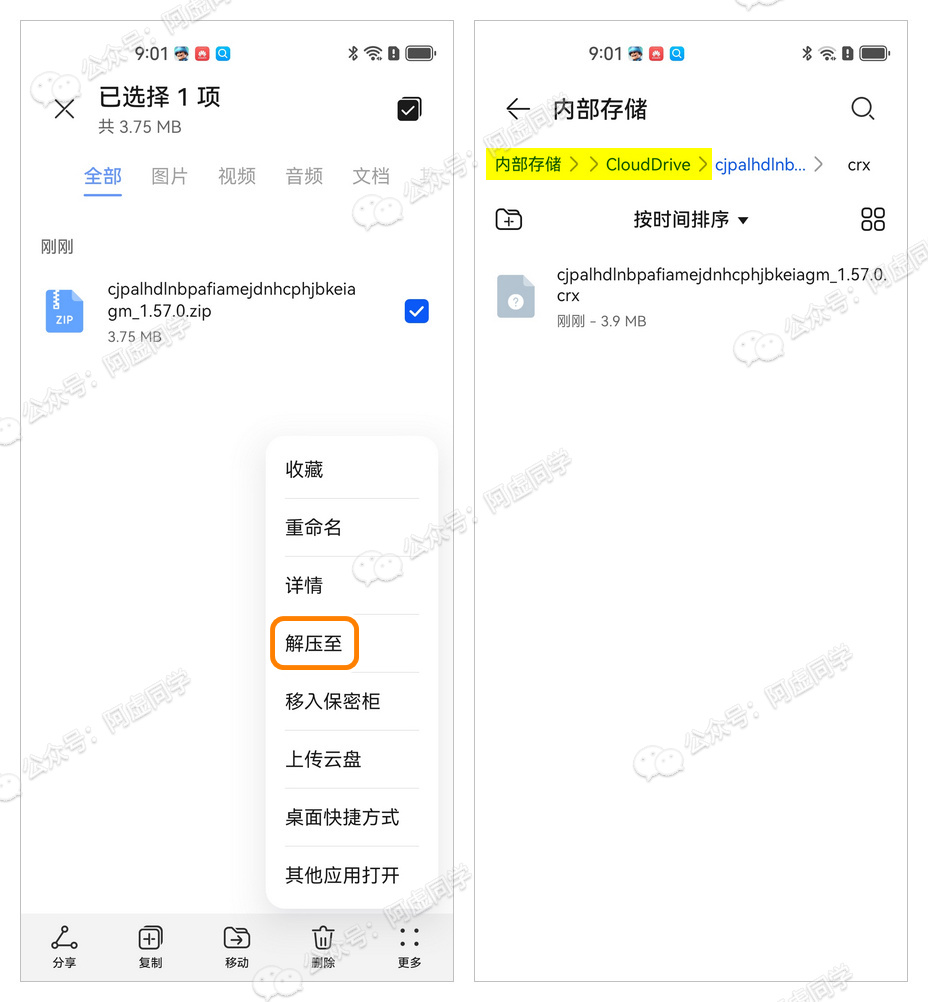
If the downloaded file is a ZIP or other compressed format, open your phone’s file manager and navigate to the Downloads folder (where most browsers save default downloads).
Select the downloaded extension file, use the file menu to extract it, and remember the folder where you save the uncompressed files!
Finally, go back to the Developer options in Edge, select Extension Install by CRX, choose the local CRX file you downloaded (or the uncompressed folder), and click Add to complete the installation.
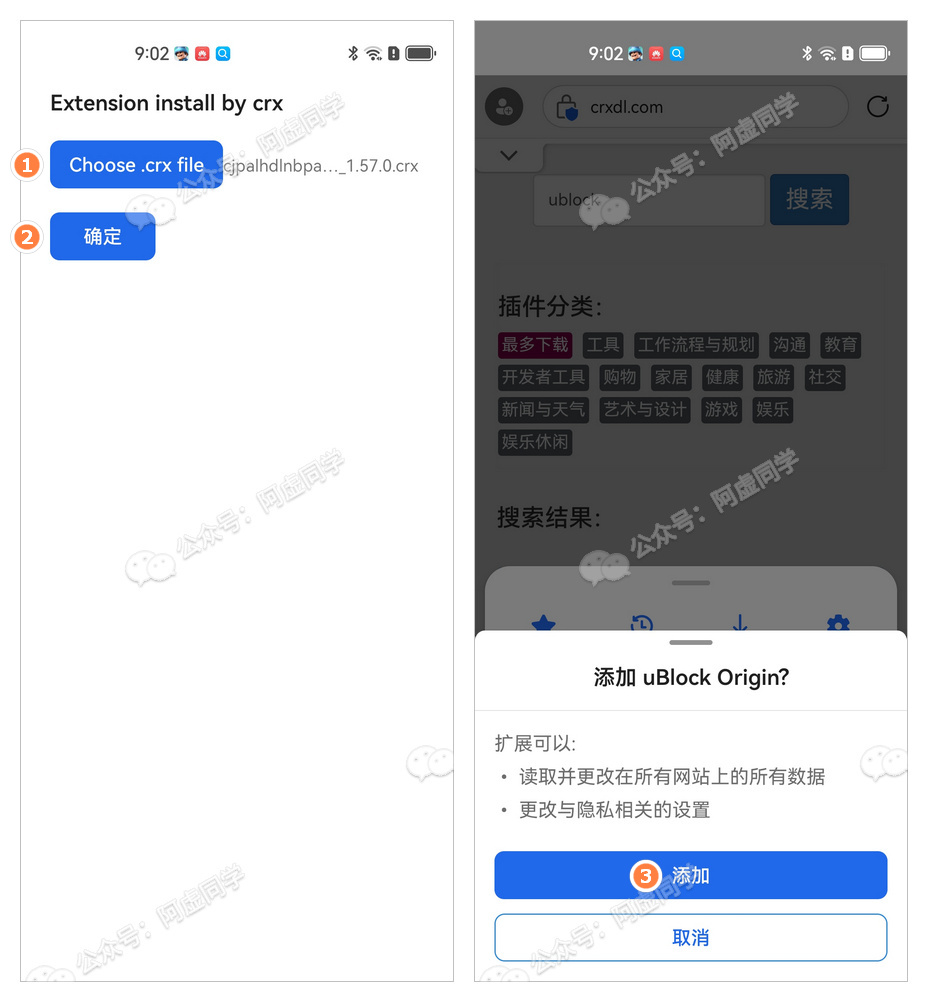
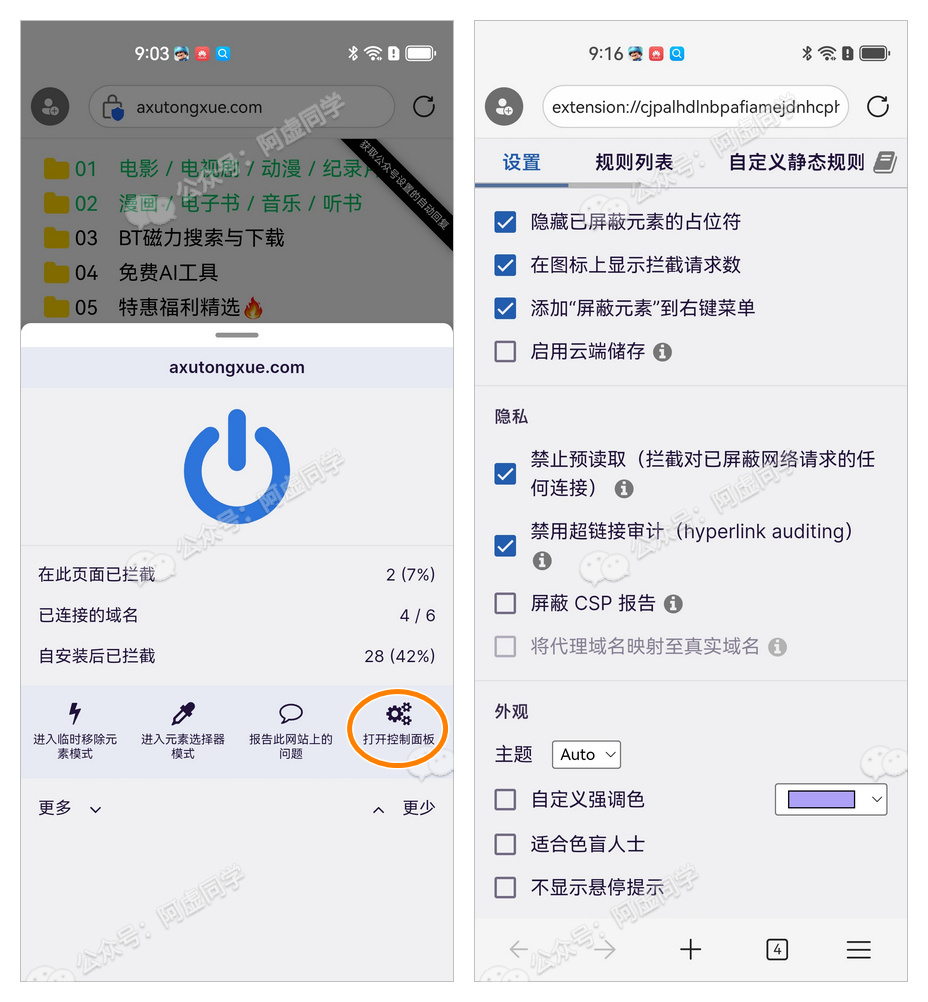
For example, uBlock also works flawlessly on Edge!
Comments
Post a Comment