How to Play Videos Downloaded on Your Computer Directly on Your Phone/iPad

computer directly on your phone/iPad, saving you a lot of time that would otherwise be spent copying videos to your mobile device.
Preparations
Your phone/tablet and computer must be connected to the same Wi-Fi network. Note the following:
It will NOT work if your computer turns on its mobile hotspot and your phone/tablet connects to it.
It will NOT work if your phone/tablet and computer both connect to the same public Wi-Fi (e.g., campus Wi-Fi).
It WILL work if your phone/tablet and computer both connect to another shared hotspot (e.g., a home router).
Your computer must remain powered on for your phone/tablet to play the videos.
Setup for Windows
Locate the folder you want to share, then right-click it and select Properties. Switch to the Sharing tab and click the Share button.
Click the drop-down arrow, select Everyone from the list of options, and finally click the Share button at the bottom-right corner of the window to complete the sharing setup. 👌
Note: You can also select a specific user (e.g., my username "砺心"). However, if you later encounter a "insufficient permissions" prompt when connecting to the computer, or if the folder appears empty after connecting, please select Everyone.
Still under the Sharing tab, click Network and Sharing Center.
Note: You can also access this by opening Control Panel ⇨ Network and Internet ⇨ Network and Sharing Center ⇨ Advanced sharing settings.
If your current network is set as a Private network, configure it as follows (see image below): Enable Network discovery ⇨ Check the box for Turn on automatic setup of network connected devices.
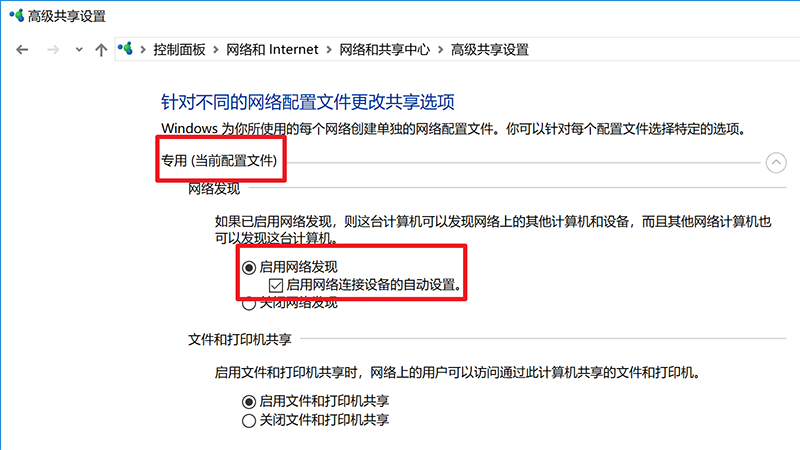
Note: If you cannot enable Network discovery, try these steps: Right-click the This PC icon and select Manage to open the Computer Management window. Click Services and Applications ⇨ Services in the left pane. In the right pane, find the SSDP Discovery service, double-click it to open its Properties window. Under Startup type, select Automatic from the drop-down menu, click Apply, then click Start to enable the service. Finally, click OK.
Recommended Settings
If you encounter an "incorrect password" error when connecting to the shared folder later:
Go to All Networks (in Advanced sharing settings) and find Password protected sharing.
Select Turn off password protected sharing.
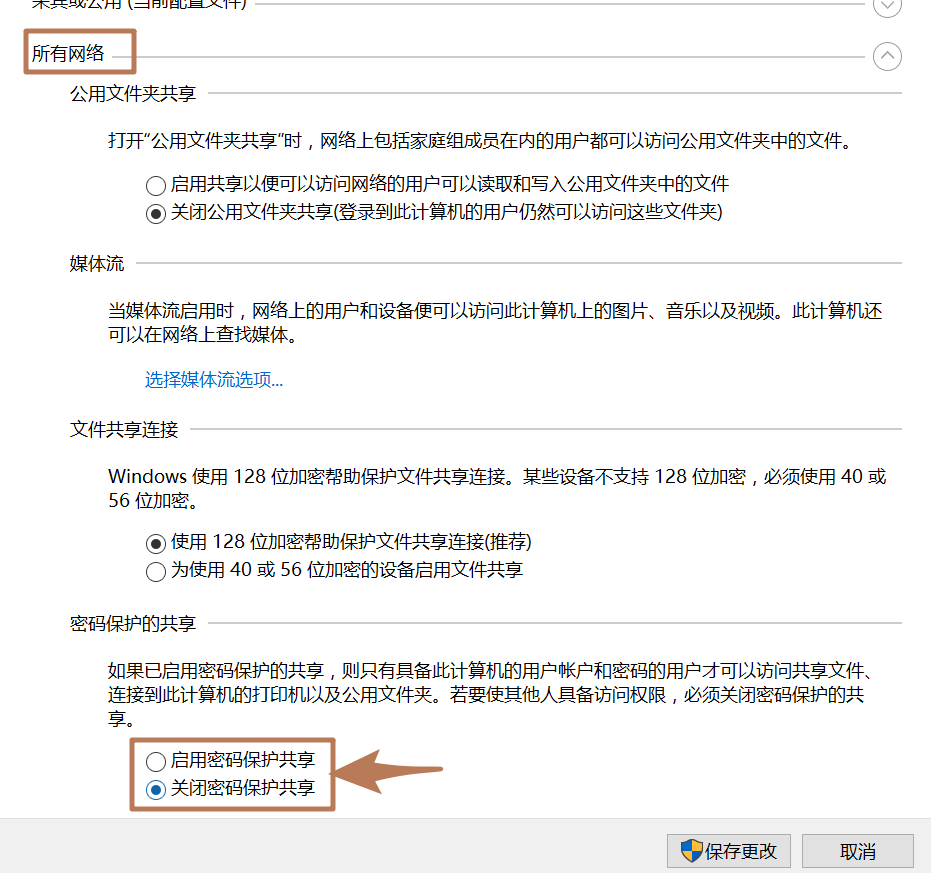
Additional Notes:
For Windows 10 users: Most current apps only support SMB v1.
However, this version 1.0 protocol has critical security vulnerabilities, so Windows 10 Fall Creators Update (v1709) disables this service by default.
This may cause apps like VLC to detect your computer but fail to open it or connect to it.
To enable the service (if needed):
Open Control Panel ⇨ Programs and Features ⇨ Turn Windows features on or off.
Check the options in the red box shown in the image below.
Note: If you are concerned about security and do not want to enable this service, you can use apps that support SMB v2, such as Solid Explorer.
Cancel Sharing
To stop sharing the folder:
Go back to the folder’s Properties ⇨ Sharing tab.
Click Advanced Sharing, then uncheck the box for Share this folder.
Setup for macOS
Open System Preferences on your Mac.
Click Sharing, then check the box for File Sharing.
Add the folder you want to share.
Click Options and enable sharing.
Note: The user you grant sharing access to here is the same user you will use to connect from your phone/tablet.
软件推荐
There are many apps that can play videos over a local network; here are a few recommendations:
For iOS: :、、
For Android:、、
How to Use the Apps
The process is similar across most apps. Here’s a quick guide:
Example: Open VLC and tap Scan Local Network.
Example:Open nPlayer and tap Network ⇨ Scan Network.
Tap the detected server:
If you turned off password-protected sharing (per the earlier steps), simply tap Save to connect.
If you did not turn it off, enter the username and password used to log in to your computer.
You will now see the files on your computer. Tap a video to start playing.
It’s that simple! Now you can watch videos stored on your computer directly on your iPad (or other phone/tablet).
Comments
Post a Comment